RAG Chatbot with Groq API and Text-to-Speech (TTS)¶

- Overview of Retrieval-Augmented Generation (RAG)
- 🚀 Notebook Content
- 🔑 Required API Keys
- 🦮 Creating a Hugging Face Access Token
- ⚡️ Creating a Groq API Key
- 🔮 Creating an OpenAI API Key
- Creating a Google Gemini API Key
- ☁️ Store API Keys as Secrets in Google Colab
- ⚙️ Using LLMClient in the Notebook
- Resources for RAG
- 🧩 License
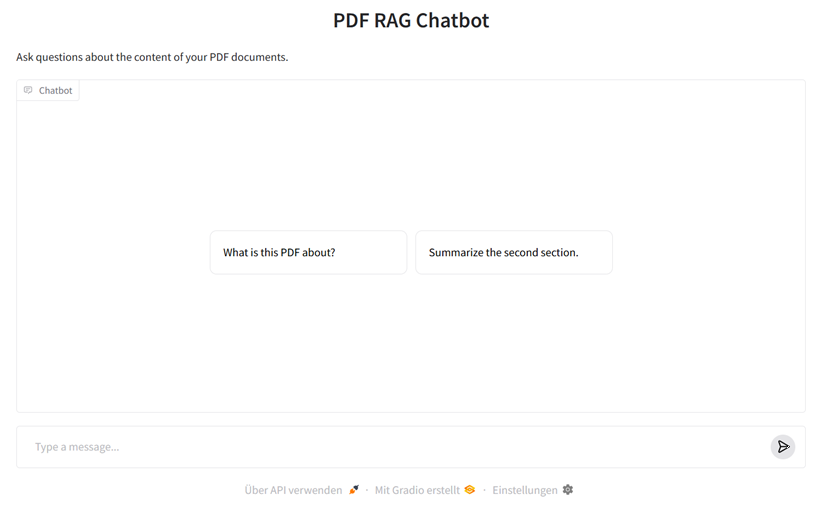
The notebook RAGChatbot_groq_API_t2s.ipynb shows how to create a Retrieval-Augmented Generation (RAG) chatbot using the LLMClient class, which also features a Text-to-Speech (TTS) function. The Kokoro model is used for speech synthesis.
Overview of Retrieval-Augmented Generation (RAG)¶
Retrieval-Augmented Generation (RAG) combines knowledge from your own documents with the linguistic competence of large AI models like ChatGPT. Instead of the model only accessing its internal (and limited) training knowledge, RAG first searches specifically in a knowledge base or document collection for relevant text passages ("Retrieval") and then passes these along with the user query to the Large Language Model ("Generation").
Additionally, this tutorial integrates Text-to-Speech (TTS) to convert the generated answers directly into speech. This allows for a more natural interaction with the chatbot.
The following diagram shows the basic structure of a RAG system:

Figure: "High-level overview of the Retrieval Augmented Generation System" by Maanjunath S Naragund, taken from this blog post on Medium. Icons by Flaticon. Used under the right of quotation (§ 51 UrhG). This figure is not under the MIT license of this repository.
🚀 Notebook Content¶
The notebook demonstrates:
- Installation of required packages in Google Colab (including
kokorofor TTS) - Using the
LLMClientclass for text generation - Building a RAG workflow with PDF documents and ChromaDB
- Integration of Text-to-Speech (TTS) with the Kokoro model for speech output of responses
🔑 Required API Keys¶
| Service | Required | Purpose |
|---|---|---|
| Hugging Face Access Token | ✅ required | Download the embedding model and the Kokoro TTS model |
| Groq API Key | optional | Use the Groq LLM API |
| OpenAI API Key | optional | Use the OpenAI LLM API |
🦮 Creating a Hugging Face Access Token¶
The Hugging Face Access Token is required to access embedding models and other AI models from the Hugging Face Model Hub, which are used to calculate sentence embeddings. These are downloaded from the Model Hub and executed locally.
-
Create a free account at https://huggingface.co/ or log in (if necessary).
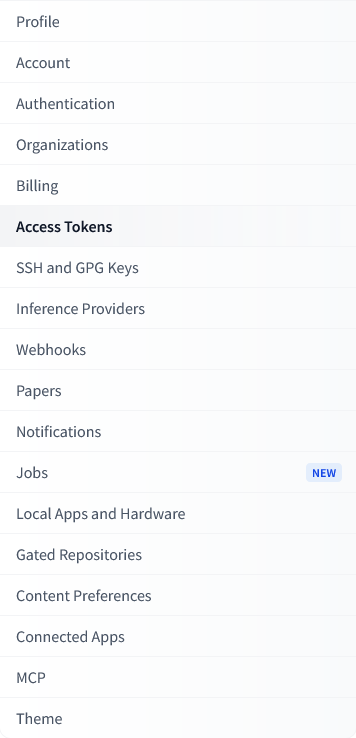
- Click on the "Create new token" button

- Enter a name (e.g.,
colab-rag) and select Type: Write
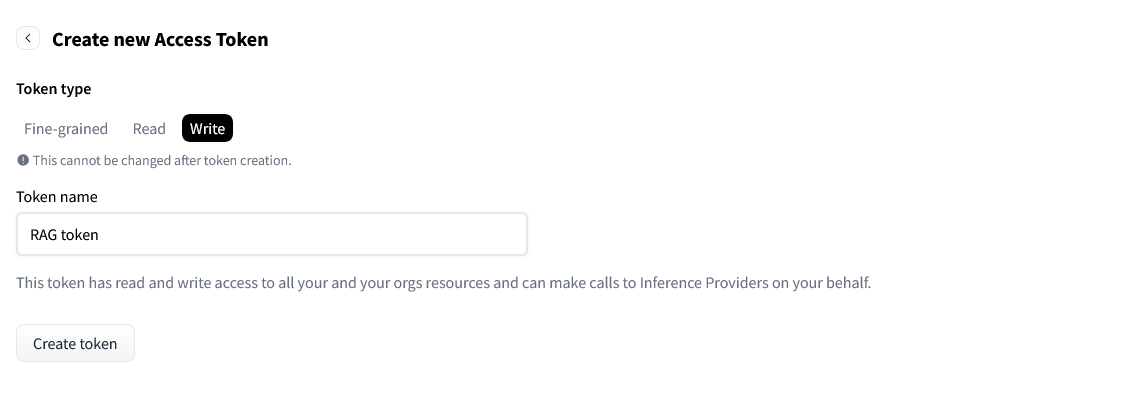
- Copy the displayed token (usually starts with
hf_...).
⚡️ Creating a Groq API Key¶
The Groq API Key allows access to publicly available LLMs that can be used for particularly fast text generation and question answering in the RAG workflow. These LLMs are executed in the GroqCloud.
- Create a free account at https://groq.com/ or log in (if necessary).
- Visit https://console.groq.com/keys
- Click on "Create API Key"

- Copy the key (usually starts with
groq_...).
🔮 Creating an OpenAI API Key¶
The OpenAI API Key allows the use of OpenAI models (e.g., GPT-4 or GPT-4o) to generate context-related answers in the Retrieval-Augmented Generation system.
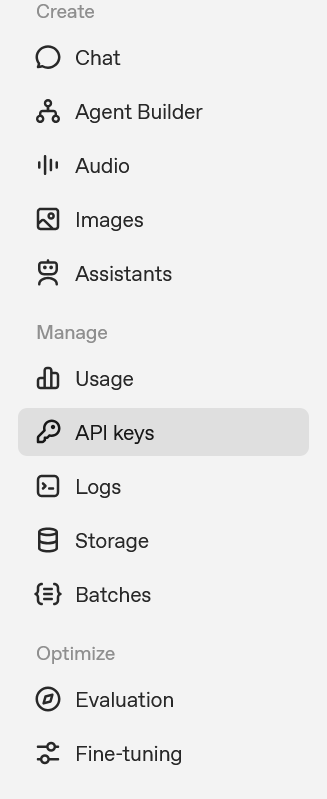
- Click on "Create new secret key"
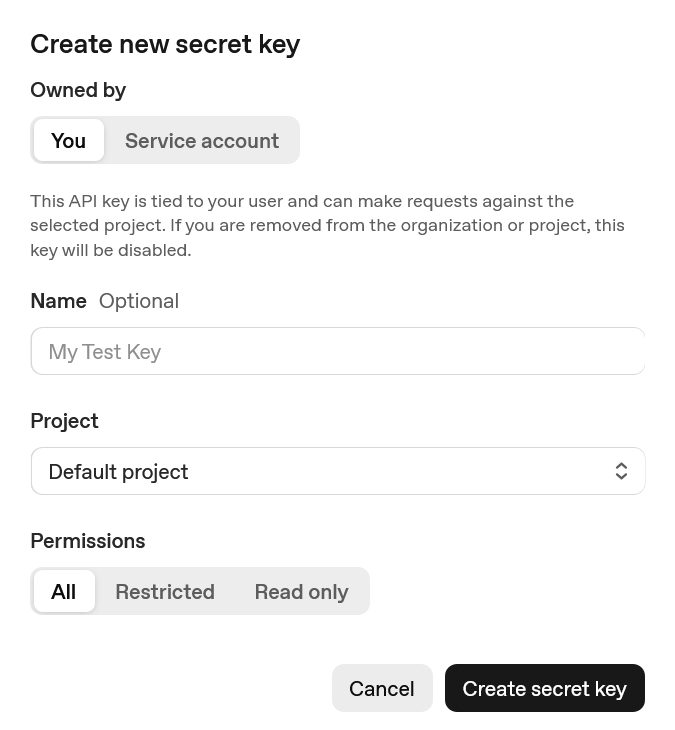
- Copy the key (usually starts with
sk-...).
Creating a Google Gemini API Key¶
- Visit Google AI Studio
- Click on "Get API Key" or "Create API Key"
- Select a Google Cloud project or create a new one
- Copy the generated API key (starts with
AIzaSy...)
Note: The Gemini API is accessed via the OpenAI compatibility mode, therefore only the openai Python package is required.
☁️ Store API Keys as Secrets in Google Colab¶
- Click on the key symbol 🔑 in the menu on the left
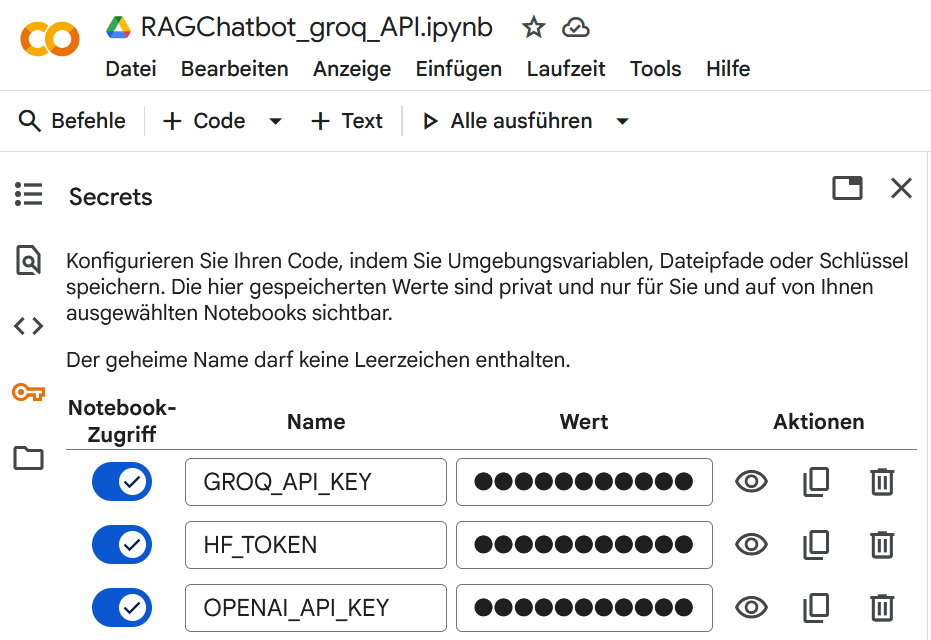
- Create the following secrets:
| Name | Value |
|---|---|
API_KEY |
(recommended) your API Key for OpenAI, Groq or Gemini (automatic detection) |
HF_TOKEN |
your Hugging Face Access Token |
GROQ_API_KEY |
(optional) your Groq API Key |
OPENAI_API_KEY |
(optional) your OpenAI API Key |
⚙️ Using LLMClient in the Notebook¶
from llm_client import LLMClient

# LLMClient automatically detects which keys are set
client = LLMClient()

print("Used API:", client.api_choice)
print("Model:", client.llm)
Resources for RAG¶
Coursera Course on Retrieval Augmented Generation (RAG) by DeepLearning.AI
🧩 License¶
This notebook is part of the repository dgaida/llm_client. © 2025 – Daniel Gaida, Technical University. Licensed under the MIT License.